01
Open the app
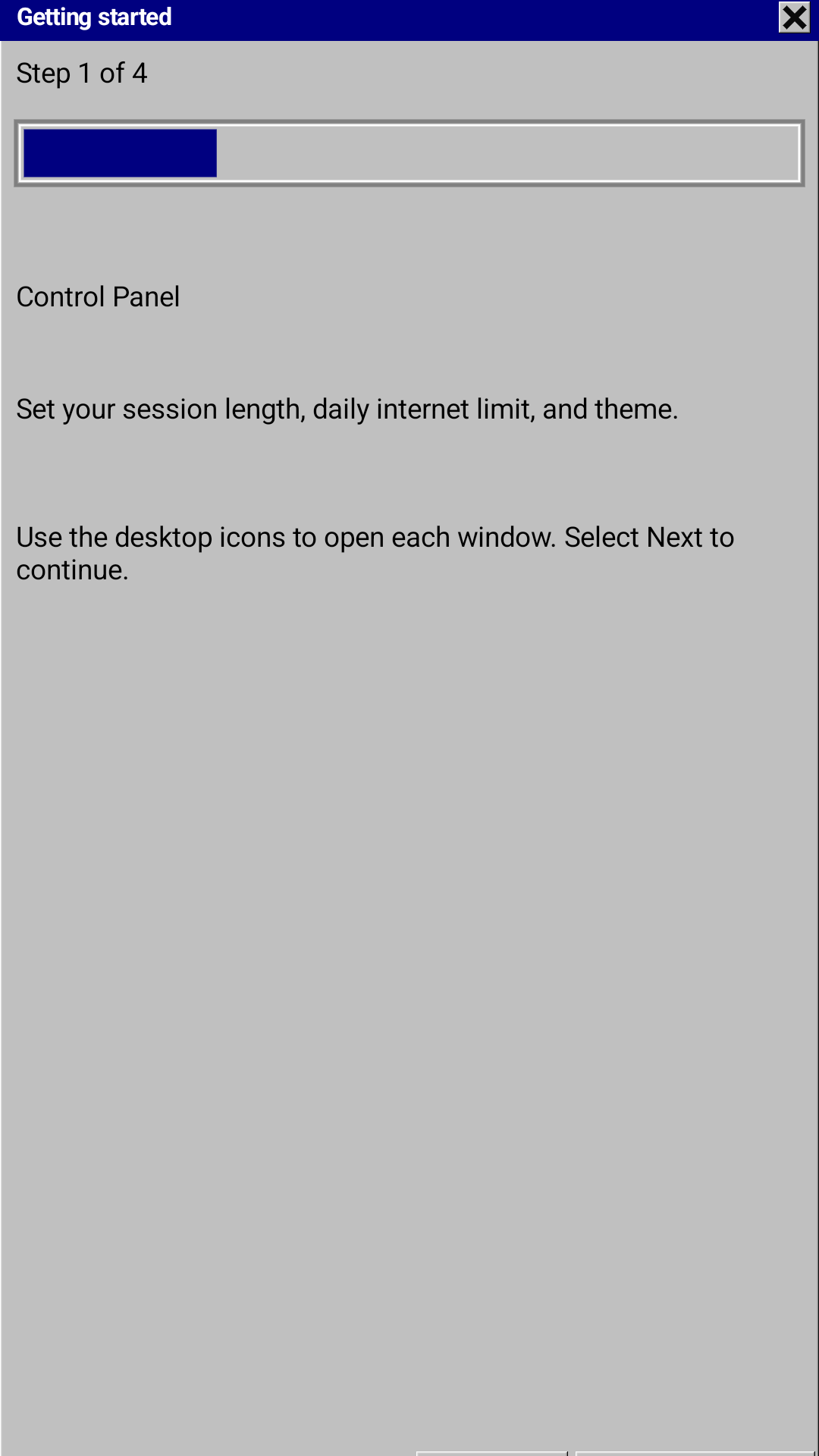
Open dialupr and follow the setup guide. Your internet is not restricted until you enable protection and approve Android's VPN request.

Android guide
Set up a short list of useful apps, close the rest of the internet, and open access only when you choose.
Getting started
dialupr is a focus aid, not a security boundary. Keep your recovery path nearby before you start.
Open dialupr and follow the setup guide. Your internet is not restricted until you enable protection and approve Android's VPN request.
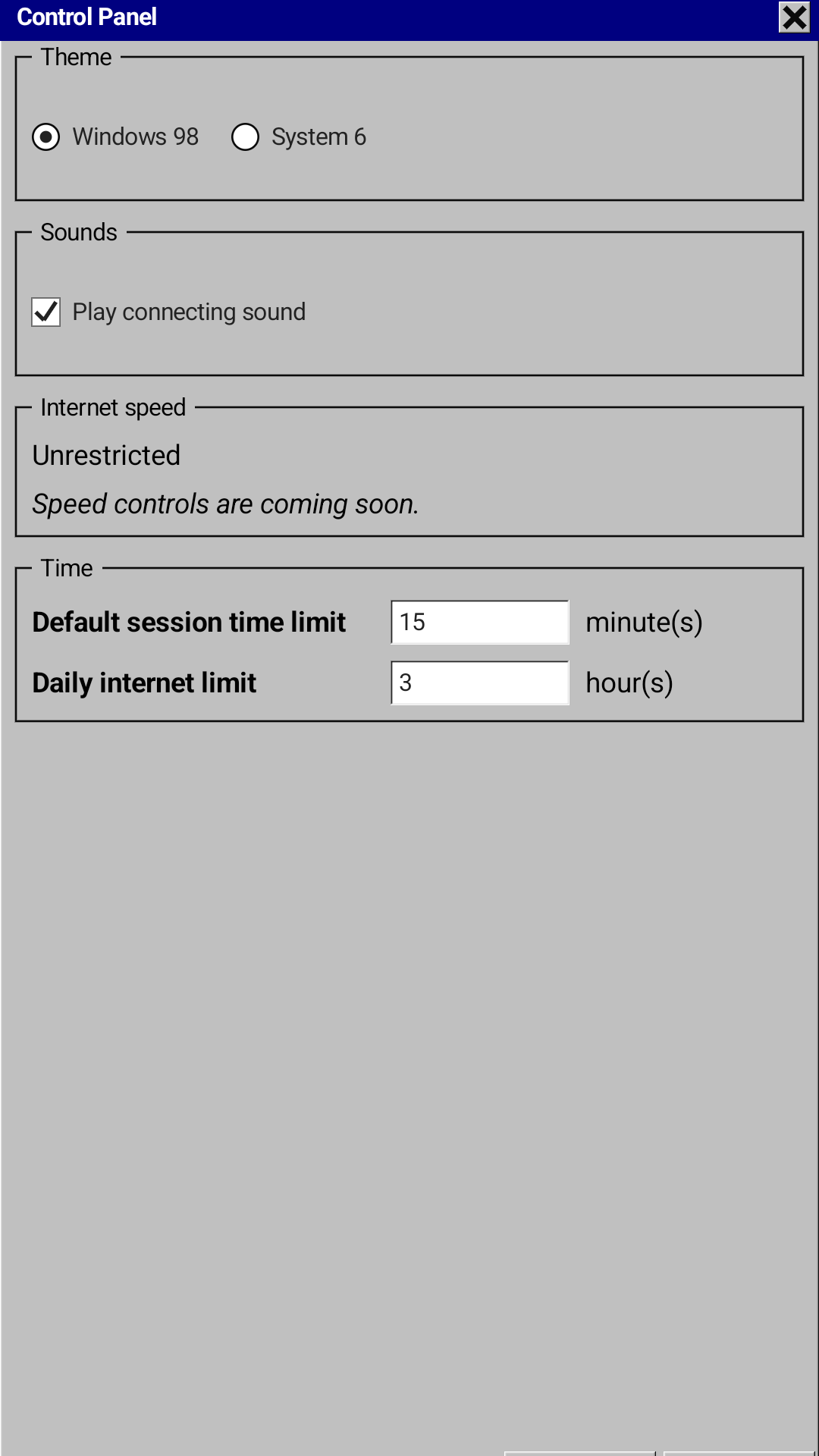
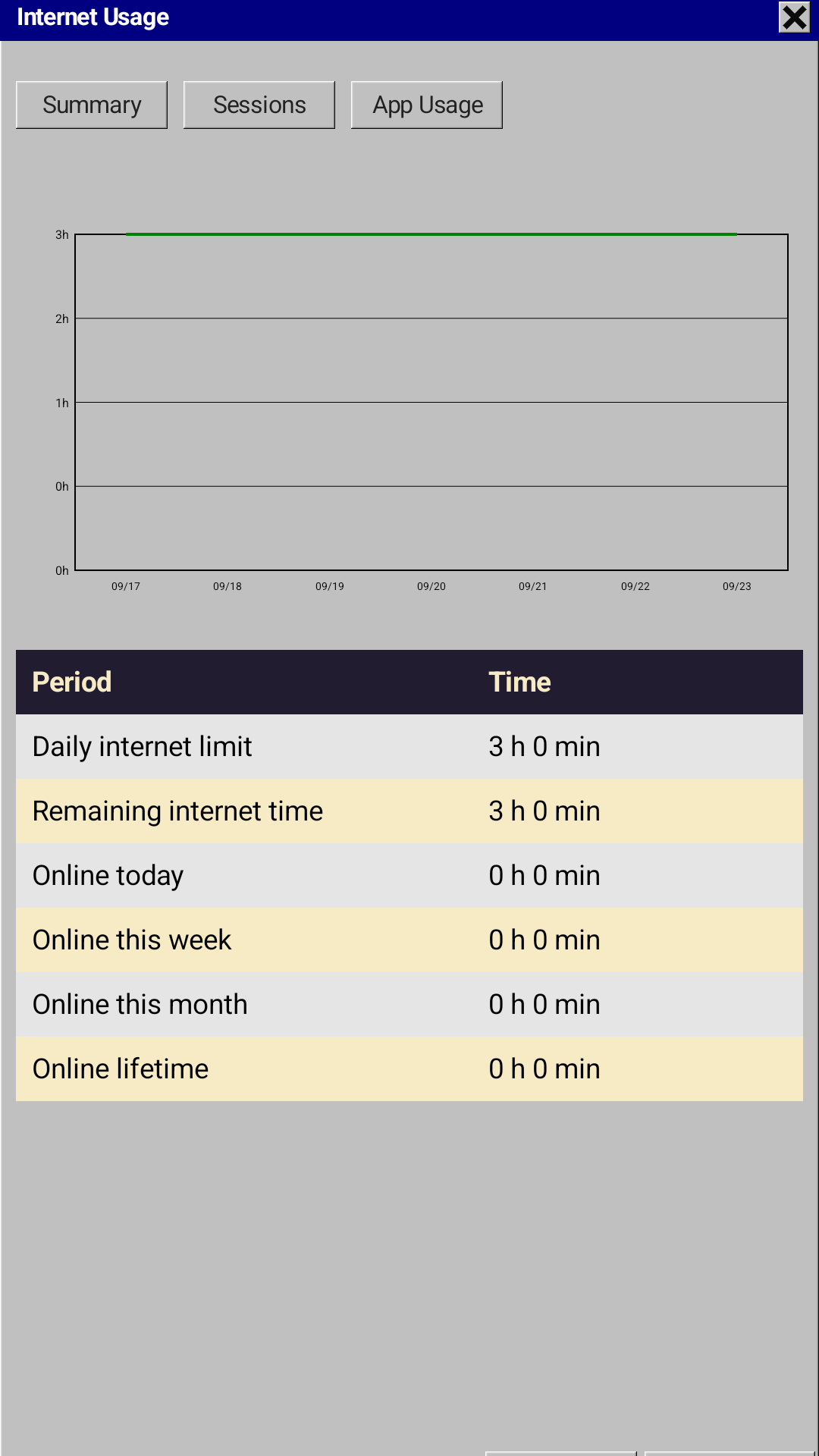
Open Control Panel to choose a session length and daily limit. Use Essential Apps to keep the apps you need for work or study available.
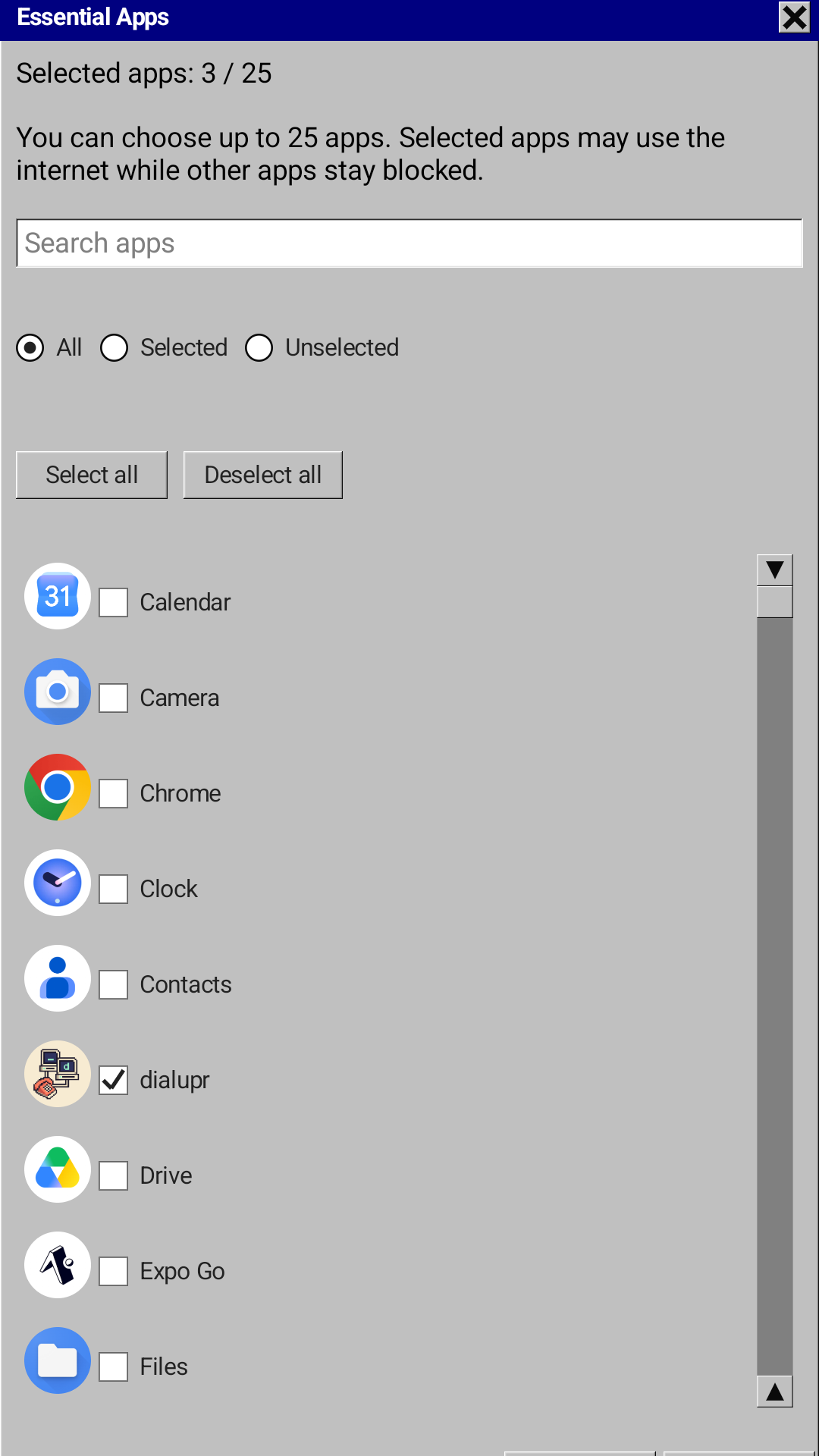
Select only the apps you need. These selected apps can stay usable while other internet access is blocked. You can change the list later.
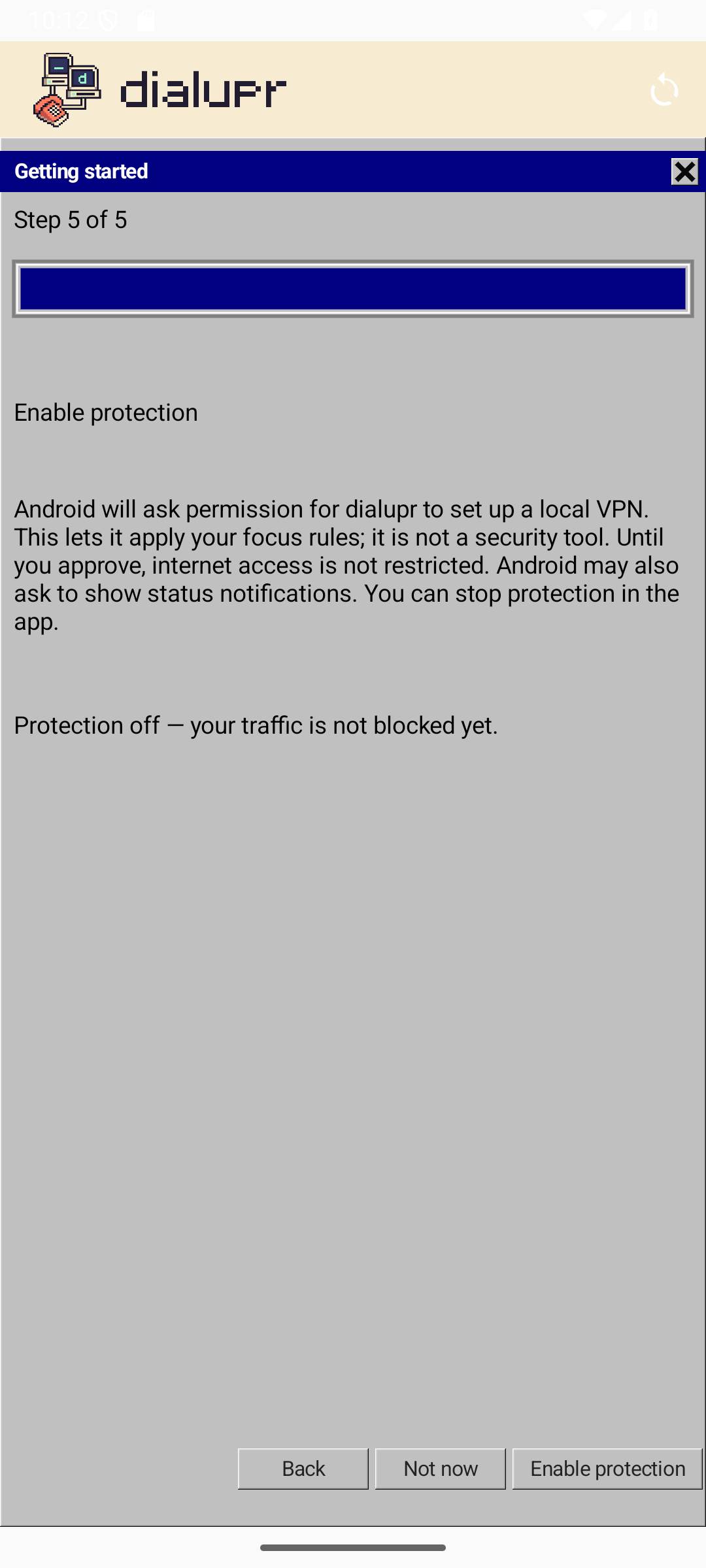
At the end of the guide, tap Enable protection and approve Android's VPN request. Until then, internet access stays unrestricted. Once protection is running, dialupr can apply offline mode and your essential-app choices.
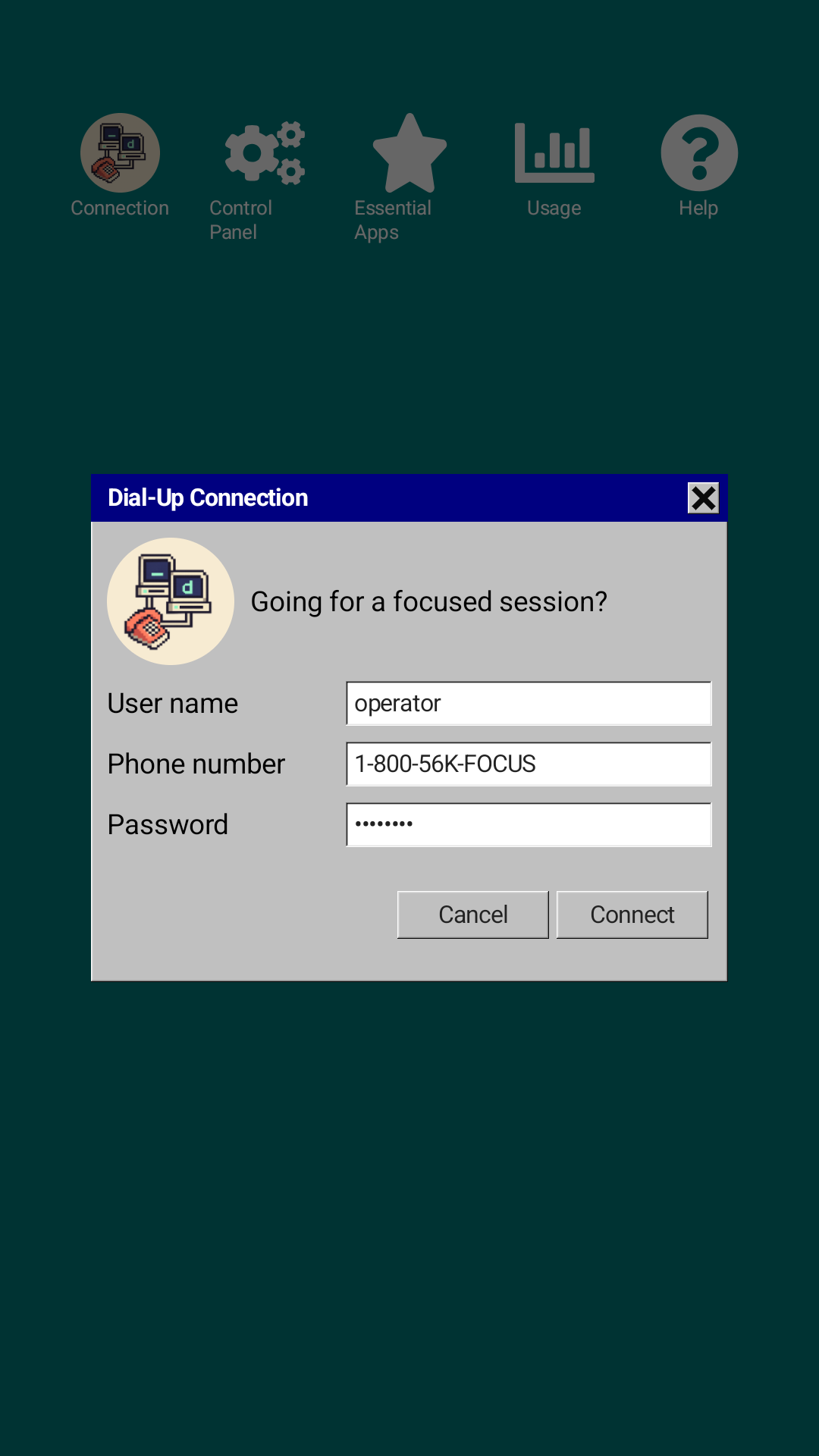
When you need wider internet access, open Connection, enter your purpose, and choose a session length. dialupr shows progress and confirms when the session is active.
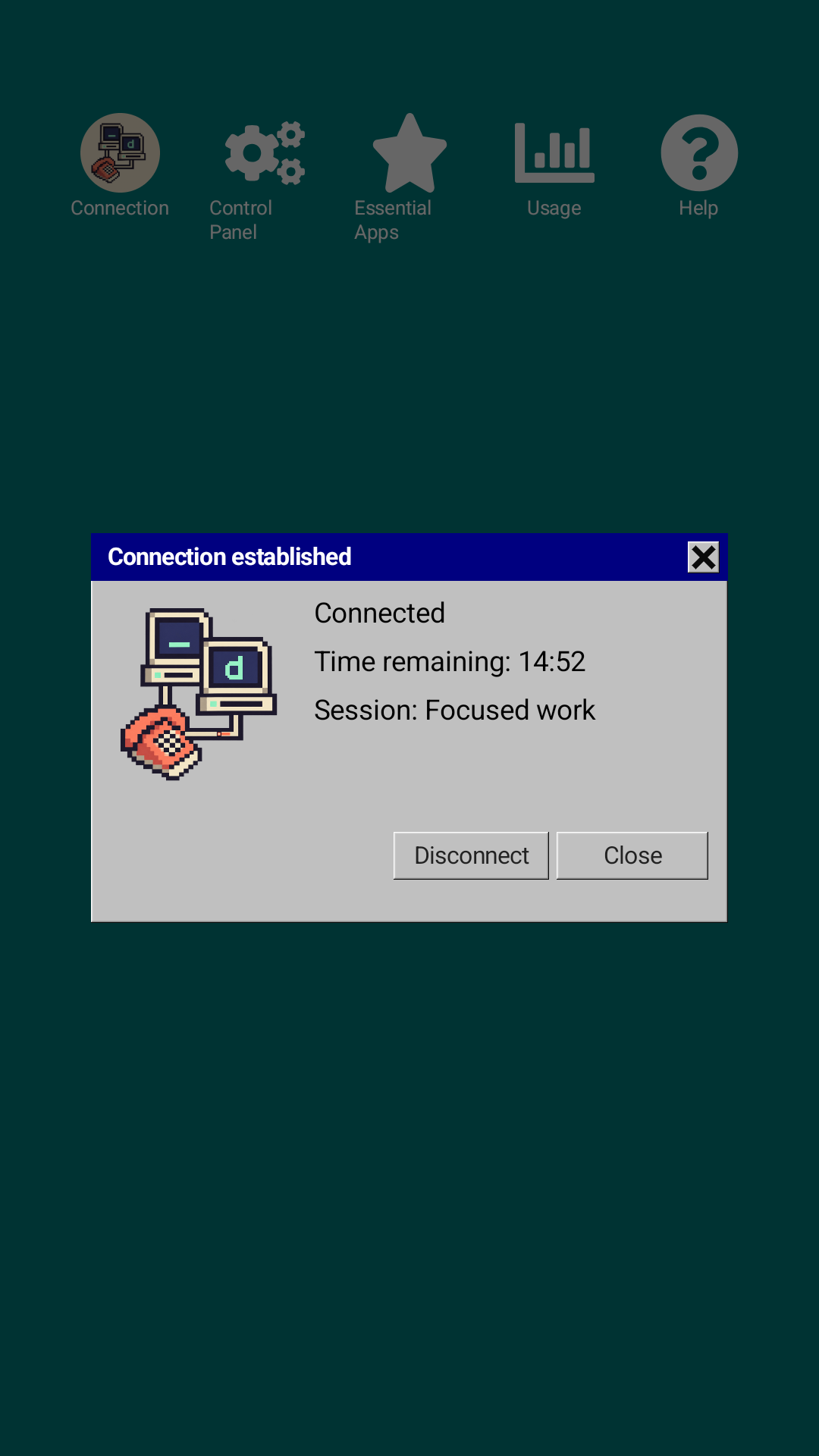
Open Connection and choose Disconnect to end the session early. When the timer ends, dialupr returns to offline mode automatically, if protection is still running.
Remember
Offline mode limits public internet access while keeping local devices and the apps you selected available. If you need a specific site or a full internet session, open it deliberately and for a limited time.
Offline mode only works while dialupr protection is running. Android asks for VPN permission when you tap Enable protection in the app. You can stop protection from the app at any time.
Open Help from the app for recovery guidance and answers to common questions.